 Notepadby AI Scroll
Notepad › Guides › Notepad that syncs
Notepad for Chrome that syncs across computers
You write a note at work and want it at home – without signing up for yet another service. Here's how syncing notepads for Chrome actually work, which kind to pick, and how to set one up in two minutes.
Short answer: the simplest option is a notepad that stores notes in your Chrome bookmarks. Chrome already syncs bookmarks to every computer where you're signed in, so your notes follow you with no new account, no server and nothing to configure.
The 3 ways a Chrome notepad can sync
Every note-taking extension has to store your notes somewhere. Where it stores them decides how – and whether – they sync.
| Method | How it syncs | Good | Watch out for |
|---|---|---|---|
| Chrome bookmarks | Notes are saved as bookmarks; Chrome Sync copies them | No new account, no server, works offline, free | Needs Chrome sync with Bookmarks turned on |
| Google Drive | Notes are copied to a file in your Drive | Works across more devices | Needs Drive permission; you manage another connection |
| The app's own cloud | You create an account with the extension maker | Often has phone apps | Your notes live on someone else's server; often a paid plan |
| Local only | Doesn't sync at all | Most private | Notes stay on one computer – lost if that browser is reset |
If you only use Chrome on computers, bookmark sync is hard to beat: it's already running, it's free, and nobody but you and Chrome Sync touches your notes.
Set it up in 2 minutes
- Check Chrome sync. Open
chrome://settings/syncSetup/advanced. Make sure you're signed in and Bookmarks is switched on. Do the same on your other computer, with the same account. - Add a bookmark-syncing notepad. Notepad (free) is the one we make – it saves notes in a bookmark folder called “Notepad (synced notes)”.
- Write a note. It saves as you type. There's no save button.
- Install it on your other computer too. Your notes appear there within a few minutes – the same names, groups, pins and colours.
The one problem every synced notepad has
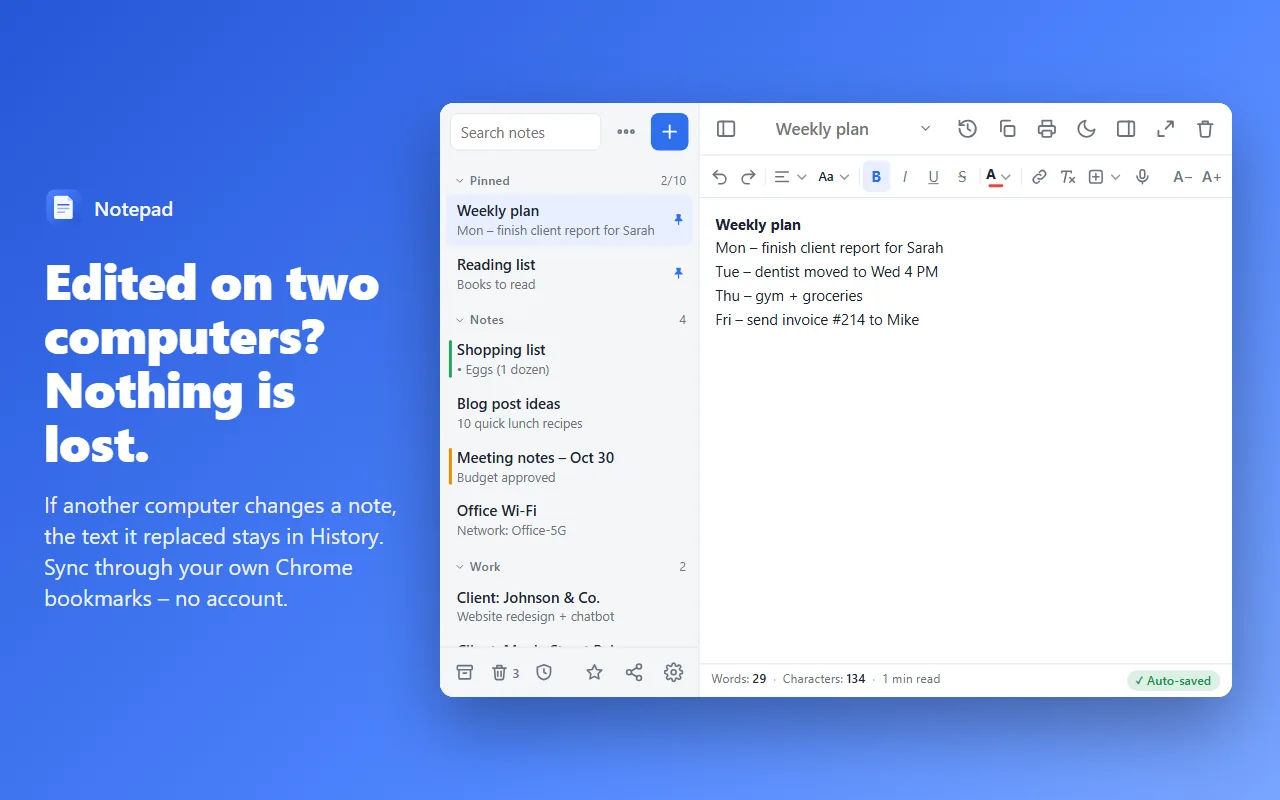
Edit the same note on two computers before they've synced, and one version wins. Chrome Sync keeps the newest copy – the other one is simply replaced. Most notepads don't tell you this happened.
Notepad watches for it: when a note is changed by another computer, the text it had on this computer goes into that note's history, and a small notice says “Changed on another computer – see earlier text”. One click brings the old version back. Nothing is silently lost.
Notes not showing up on your other computer?
- Same account on both? Click your profile picture in Chrome on each computer and compare.
- Bookmarks sync on? It can be switched off on its own in
chrome://settings/syncSetup/advanced. - Give it a few minutes. Chrome syncs in the background; a new computer can take longer the first time.
- Look in your bookmarks. Open
chrome://bookmarksand find “Notepad (synced notes)” under Other bookmarks. If the notes are there, sync is working. - Don't edit that folder by hand – rename or move notes inside Notepad instead.
Try Notepad – free, no new account
Syncs through your Chrome bookmarks. Auto-save, 30-day note history, restore points and a side panel.
Add to Chrome – it's freeFAQ
Do I need an account to sync notes in Chrome?
Not a new one. A bookmark-syncing notepad uses the Google account you're already signed in to Chrome with. If you're not signed in, it still works – just on that one computer.
Does it work on my phone?
Chrome extensions don't run on phones, so no. Your notes are stored in your bookmarks, but they're not meant to be read there.
Does it work in Edge, Brave or Firefox?
Bookmark sync only works between Chrome browsers signed in to the same account. Other browsers have their own sync and can't read Chrome's.
Is it private?
Your notes go only to your own Chrome bookmarks and Chrome Sync. Notepad has no server, no analytics and no ads.